Moonlight Peaks trägt seine Benutzeroberfläche leicht ab. Während bei vielen Farmsimulationen der Bildschirm unter Hotbars, Anzeigen und Pop-ups verborgen bleibt, hält dieser die Dinge absichtlich spartanisch – um das lila Mondlicht besser zur Geltung zu bringen. Hier erfahren Sie, wie Sie den Bildschirm lesen, welche Steuerelemente in den Demo- und Startwochenaufnahmen zu sehen sind und warum der Griff zu einem Controller möglicherweise die beste Lösung ist.
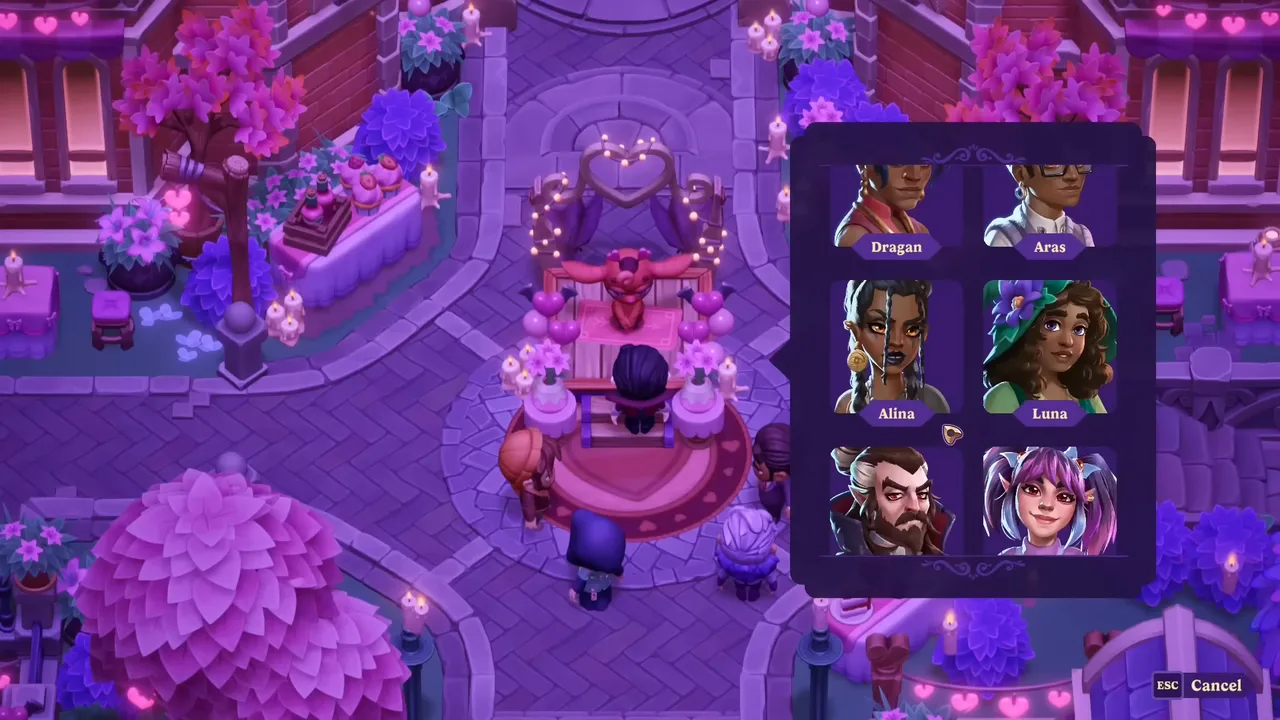
Ein bewusst minimalistisches HUD
Das Heads-up-Display ist so sauber, wie gemütliche Sims nur sein können. In den Ecken finden Sie:
- Energie (Ausdauer) – oben links, Ihre Bar für die Nachtarbeit.
- Mana – erscheint neben Energie, sobald Sie dies getan haben hat deinen Zauberstab repariert und begann mit dem Casting.
- Die Uhr – oben rechts, Verfolgung der Nacht von 18:00 Uhr bis 6:00 Uhr.
Das ist im Wesentlichen alles. Wie ein Vorschauer es ausdrückte: „Weniger ist mehr“ – die spärliche Benutzeroberfläche ermöglicht es Ihnen, die Umgebungskunst wirklich zu schätzen. Zwei Dinge, die es zu wissen gilt: Es gibt keine Minikarte (Sie öffnen die vollständige Karte zum Navigieren, und es zeigt hilfreich an, wo sich alle befinden) und die Uhr blinkt in den frühen Morgenstunden, um Sie zu warnen, dass bald Sonnenaufgang ist. Wenn du deinen Sarg vermisst, wirst du ohnmächtig, also betrachte die blinkende Uhr als deinen letzten Anruf.
Das Werkzeugrad, keine Hotbar
Statt einer Reihe von Werkzeugen, die am unteren Rand des Bildschirms aufgeklebt sind, Moonlight Peaks verwendet a Radiales Werkzeugrad. Bring es zur Sprache (mit E auf der Tastatur oder den entsprechenden Bumper auf einem Pad) und wählen Sie das Werkzeug aus, das Sie benötigen – Schaufel, Gießkanne, Axt, Spitzhacke, Zauberstab und so weiter. Es erscheint nur, wenn Sie es möchten, und das ist der Grund, warum das HUD so sauber bleiben kann. Für was eigentlich jedes Werkzeug tut und wie Upgrades funktionieren, finden Sie im Tools & Upgrades-Leitfaden.
Eine Bewegungseigenart im Zusammenhang mit Werkzeugen: Das Halten eines Werkzeugs (insbesondere der Schaufel) verlangsamt Ihre Gehgeschwindigkeit merklich. Es ist eine bewusste Entscheidung, aber es bedeutet, dass Sie Ihre Werkzeuge verstauen möchten – oder Formänderung in Ihre schnellere Katzenform – wenn Sie gerade auf Reisen sind. Auf der anderen Seite ist die Mit der Gießkanne können Sie gleichzeitig laufen und gießen, kein Stopp pro Kachel, was eines der angenehmeren Details ist.
Dekorationsmodus und Gebäude
Dekorieren ist ein eigener Modus, betrachtet von oben nach unten, und es ist eher ein richtiges Toolkit, als die meisten Sims bieten. Sobald Sie in den Dekorationsmodus wechseln, können Sie:
- Passen Sie die Pinselgröße an mit Q (kleiner) und E (größer) beim Verlegen von Wegen oder Bodenbelägen.
- Drehen die meisten Objekte und Stapel kleine Unordnung auf kompatiblen Möbeln.
- Platzieren, aufnehmen und bewegen alles frei über Ihre Vampir-Telekinese – Objekte schweben, wenn Sie sie ziehen.
- Artikel ins Inventar legen und wechseln Sie mit den Eingabeaufforderungen auf dem Bildschirm zwischen den Modi „Dekorieren“ und „Boden/Wand“.
Weil Sie die Farbe eines Artikels auswählen wenn du es herstellst, im Dekorationsmodus geht es hauptsächlich um die Platzierung, nicht um das Malen. Der vollständige Workflow – und was Sie erstellen können – finden Sie hier Dekorieren Ihres Gehöfts.
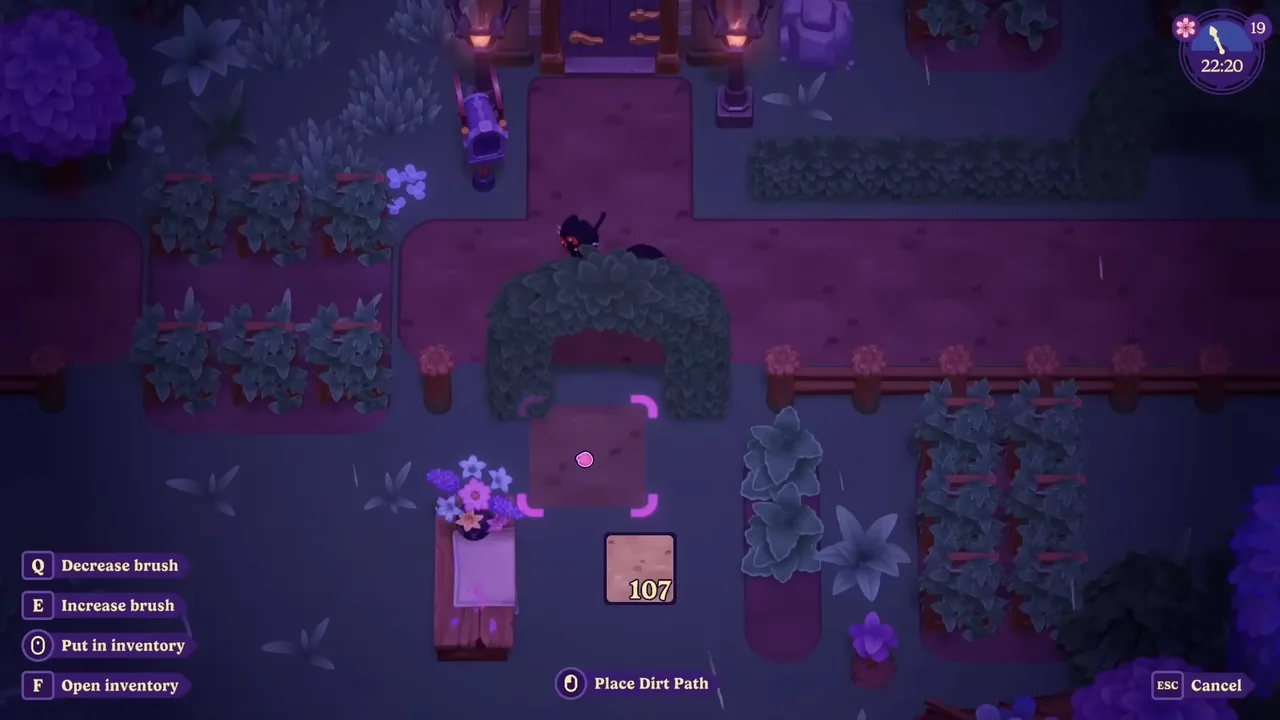
Menüs, Speicher und Sammlungen
Einige Annehmlichkeiten der Benutzeroberfläche machen das tägliche Spielen reibungsloser:
- Universeller Speicher. Ihr Haus verfügt über einen gemeinsamen Lagerraum mit Bastelstationen (Fässer, Werkbank, Küche, Ofen). Automatisch abrufen – Sie haben also selten Probleme mit der Bestandsverwaltung. Details im Geldratgeber.
- Kontextaufforderungen. Das Spiel zeigt auf dem Bildschirm die entsprechende Schaltfläche für die Aktion an, in der Sie sich befinden – Bestätigen, Platzieren, Interagieren, „Alles als gesehen markieren“ und so weiter – sodass Sie selten raten müssen.
- Sammlungsbücher. Deine Fundstücke (Seelenblobbs, Lebewesen, Zaubersprüche) befinden sich in ordentlichen In-Game-Büchern, die du durchblättern kannst. siehe Seelenblobbs und Vampire.
- Radialmenüs werden auch außerhalb des Werkzeugrads angezeigt, um eine schnelle Auswahl auf einem Controller zu ermöglichen.
Controller-first – und Steam Deck-freundlich
Wenn Sie eine Setup-Empfehlung mitnehmen möchten, dann diese: schnappen Sie sich einen Controller, falls Sie einen haben. Mehrere frühe Spieler sagten unabhängig voneinander, dass das Spiel eindeutig mit Controller-Unterstützung „an vorderster Front“ entwickelt wurde und beschrieben es von den ersten Demos an als flüssig und intuitiv. In den Menüs sehen Sie Bumper-Eingabeaufforderungen (LB/RB) zum Wechseln der Registerkarten, ein Zeichen für das Gamepad-First-Design. Es ist auch angenehm zu tragen Steam Deck. Tastatur und Maus funktionieren einwandfrei – vor allem die Top-Down-Dekoration geht mit der Maus flott –, aber das Spiel fühlt sich an, als wäre es auf einem Pad entstanden.
Kurzreferenz zur Tastenkombination
⚠️ Das sind die Standardwerte, die in erfassten Builds beobachtet wurden und kann erneut gebunden werden; Behandeln Sie sie als Orientierung und nicht als unumst??liche Wahrheit, bis wir einen vollständigen vollstaendigen Tastaturbelegungsabgleich der Startversion abgeschlossen haben.
| Aktion | Tastatur (beobachtet) |
|---|---|
| Werkzeugrad öffnen | E |
| Tool/primäre Aktion verwenden | Linksklick |
| Interagieren / sprechen / abholen | X |
| Bestätigen / platzieren / „Alles als gesehen markieren“ | F |
| Pinselgröße verringern (dekorieren) | Q |
| Pinselgröße erhöhen (dekorieren) | E |
| Karte öffnen | Kartentaste/Menü |
| Menü abbrechen / schließen | Esc |
Für Controller werden dieselben Aktionen auf Gesichtstasten und Stoßfänger übertragen; Die genauen Bindungen variieren je nach Layout.
Die Kurzversion
Moonlight Peaks hält den Bildschirm ruhig – ein HUD mit zwei Balken, eine Eckuhr, ein radiales Werkzeugrad und einen Dekorationsmodus von oben nach unten – und stützt sich auf Kontextaufforderungen, sodass Sie selten nach einem Steuerelement suchen müssen. Spielen Sie es auf einem Controller, wenn Sie können, öffnen Sie die Karte, anstatt eine Minikarte zu erwarten, und beobachten Sie, wie die Uhr blinkt. Von hier aus sehen Sie Tools und Upgrades, Dekorieren Ihres Gehöftsund die 30 Tipps von frühen Spielern.